
Table of Contents
- What is Document Builder?
- Create a new document template
- Insert fields from your records
- Add your company logo or images
- Add a scannable barcode or QR code
- Preview your document before printing
- Set a template as the default
- HTML mode (advanced)
- Frequently asked questions
What is Document Builder?
Document Builder is the template editor in TMS.ai where you create and customize the documents your team generates — printed, downloaded, or shared with customers and carriers.
Every document your operation produces (a BOL, an invoice, a rate confirmation) is generated from a document template. Document Builder lets you:
- Control the layout — headers, footers, tables, logos, and custom sections
- Pull in live record data — order ID, customer name, stops, line items, and any custom fields
- Add scannable codes — barcodes and QR codes linked to any field
- Manage multiple versions — different templates per document type, with one set as default
Where to find it: Settings → Document Builder
Document types you can customize
Document Builder supports templates for every standard TMS document. Each template is tied to one document type:
| Document Type | Common Use |
|---|---|
| Bill of Lading | Primary shipment document, proof of pickup |
| Rate Confirmation | Carrier agreement sent after dispatch |
| Invoice | Customer billing |
| Bill | Partner/carrier billing |
| Commercial Invoice | International cross-border shipments |
| Offload Manifest | Multi-stop delivery instructions |
| Preload Manifest | Load planning and staging |
| Proof of Pickup | Pickup confirmation |
| Proof of Delivery | Delivery confirmation |
| Quote | Customer quote documents |
| Pay Stub | Driver pay statements |
| Labels | Shipping labels |
| UCC-128 | Pallet/carton labels |
| PAPS | Cross-border customs |
Reminder: A widget is a type of workflow logic stored in Rose Rocket. Orders, Quotes, Manifests, Tasks, Customers, Invoices, Customers and Partners all contain default workflow logic and form steps. Each Object has a series of widgets, which typically show up as a card in the Activity Log in the detailed view.
Create a new document template
To create a custom template:
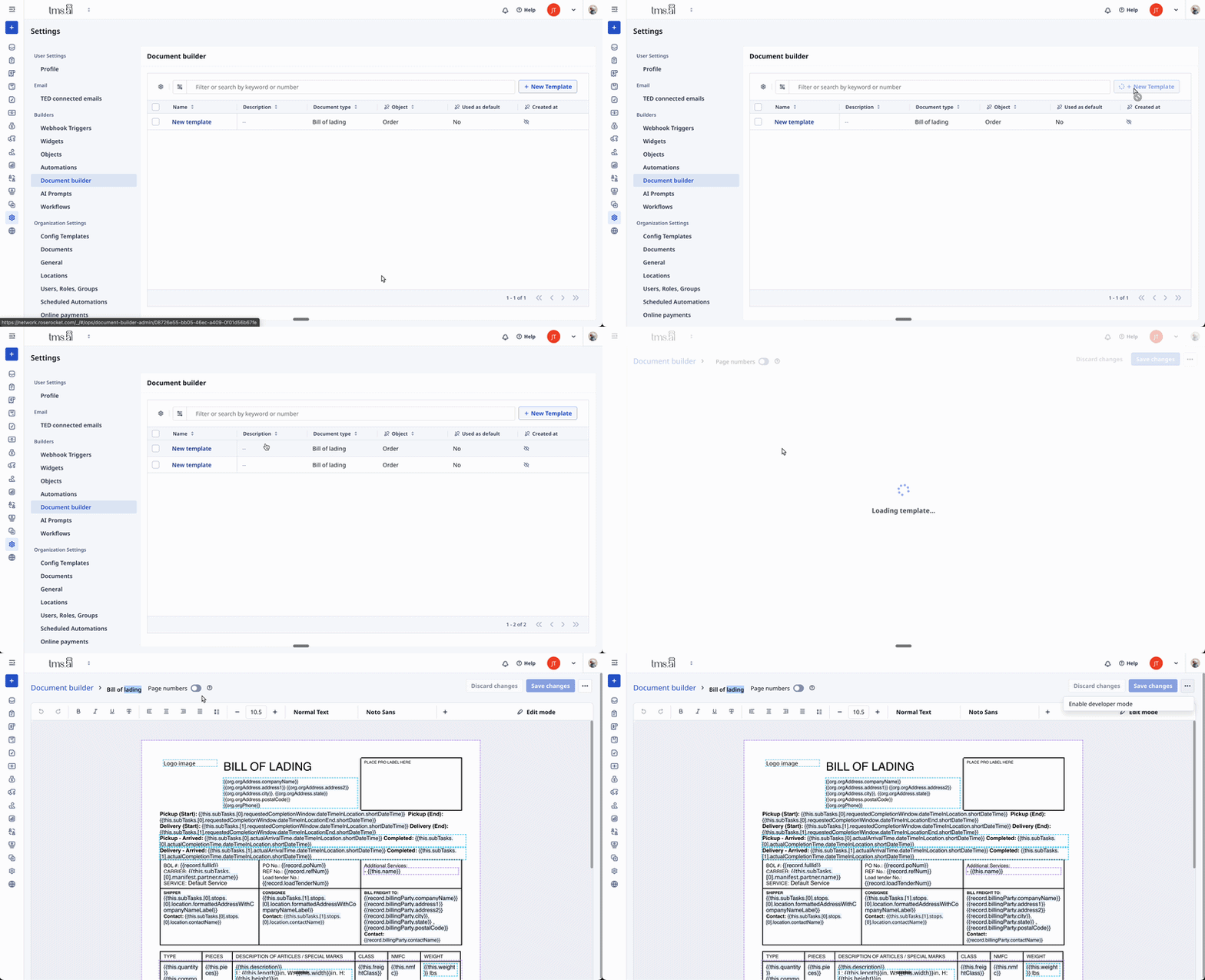
- Go to Settings → Document Builder
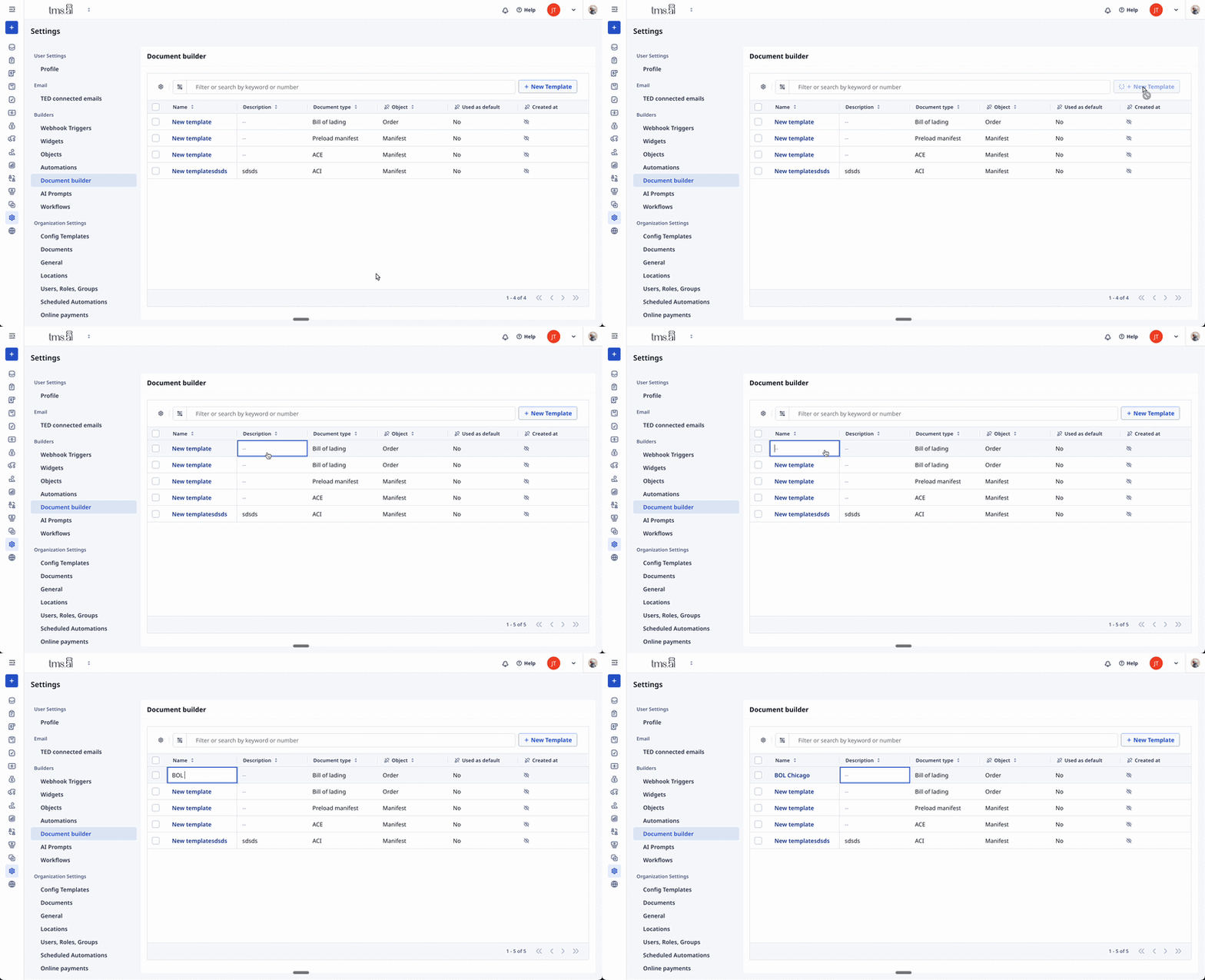
- Click + New Template
- Select the document type (e.g. Bill of Lading, Invoice, Rate Confirmation) by clicking that field on the board
- Give the template a name — this is internal only. Click the template name field on the board.
- Optionally add a description and file name format (the pattern used when the document is downloaded)
- Click Template's Name — the visual editor opens
You now have a blank template. Start by building out your layout with fields, logos, tables, and any scannable codes you need.
Insert fields from your records
Fields pull live data from the record when the document is generated — so {{record.fullId}} on your BOL becomes ORD-12345 at print time.
How to insert a field:
- Open your template in Document Builder
- Click where you want the field to appear
- Click the field picker icon in the toolbar
- Browse or search for the field (e.g. Order ID, Customer Name, Pick-up Address)
- Select the field — it inserts as a Handlebars expression:
{{record.fieldName}}
Common fields:
| What you want | Field expression |
|---|---|
| Order number | {{record.fullId}} |
| PO number | {{record.poNum}} |
| Customer name | {{record.customer.name}} |
| Carrier name | {{this.subTasks.[0].manifest.partner.name}} |
| Driver name | {{this.subTasks.[0].manifest.driver.name}} |
| Total weight | {{this.weight}} |
| Custom fields | Appear in the picker alongside standard fields |
Tip: Connected object fields work too. If you need the carrier's MC number, it's available through the partner connection — just browse to it in the field picker.
Add your company logo or images
How to add your logo to a BOL, invoice, or any template:
- Go to General in settings
- Click Edit in the top right of the card
- Upload your logo file (PNG or SVG recommended for sharp print quality)
- Open the template in Document Builder
- Click where you want the logo (typically the top-left header area)
- Use the image insert option in the editor toolbar
- Resize and position as needed
- Save the template
Add a scannable barcode or QR code
You can now insert scannable barcodes and QR codes directly into your document templates. Codes are generated dynamically from any field — Order ID, PRO number, tracking reference, or custom fields — and render on printed documents for warehouse scanning, package tracking, or carrier handoffs.
Supported Code Types
1D Barcodes (human-readable text below bars)
| Code Type | Enum Value | Sample Input | Input Constraints |
|---|---|---|---|
| Code 128 | code128 |
ORD-12345 |
Any ASCII string |
| Code 39 | code39 |
ORD-12345 |
Uppercase A-Z, 0-9, and -. $/+% |
| ITF-14 | itf14 |
00012345678905 |
Exactly 14 digits (GTIN-14 format) |
| GS1-128 | gs1128 |
(01)00012345678905 |
Valid GS1 Application Identifier format with correct check digits |
| UPC-A | upca |
012345678905 |
Exactly 12 digits including check digit |
| UPC-E | upce |
01234565 |
Exactly 8 digits including check digit (zero-suppressed UPC) |
2D Codes (no human-readable text)
| Code Type | Enum Value | Sample Input | Input Constraints |
|---|---|---|---|
| QR Code | qrcode |
https://app.roserocket.com/order/123 |
Any string (URLs, IDs, free text). Max ~4,296 alphanumeric characters |
| PDF417 | pdf417 |
SHIP-2024-001-A |
Any string. Supports large data payloads (up to ~1,800 ASCII characters) |
| Data Matrix | datamatrix |
DMX-789 |
Document Builder can generate barcodes, QR codes, and Data Matrix codes dynamically from any record field — so each BOL gets a unique code tied to that specific order.
Why it matters: Warehouse staff scan the BOL → the order opens in TMS.ai instantly. No manual lookup. No mis-keyed order numbers.
How to add a barcode to your BOL or any template:
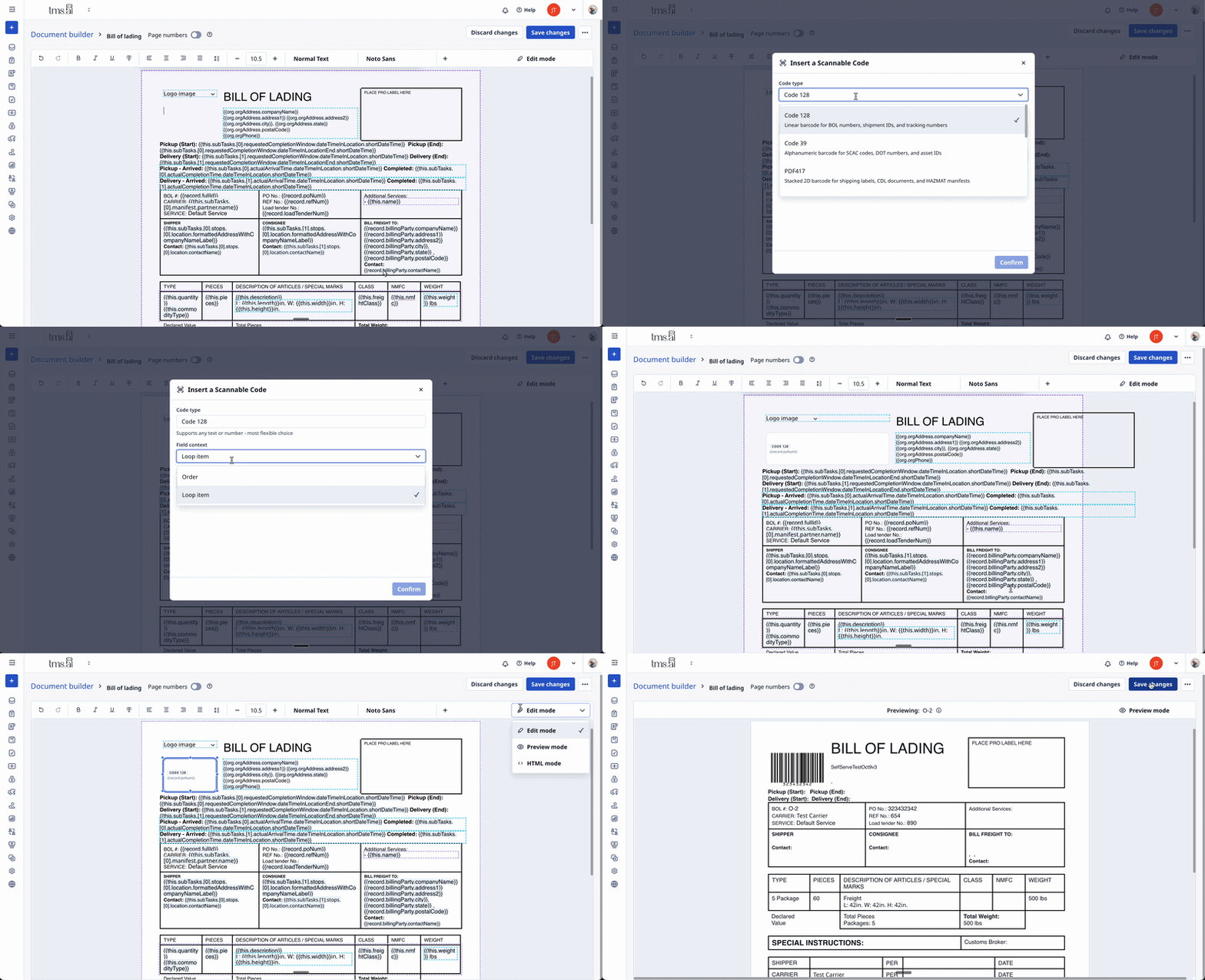
- Open the template in Document Builder
- Position your cursor where you want the code
- Click the plus (+) icon in the toolbar → Insert Code
- Choose your code type:
- Code 128 — Standard barcode for order IDs, PRO numbers (most scanner-compatible)
- QR Code — Handles longer strings, works with smartphone cameras
- Data Matrix — Compact, high-density; best for labels with limited space
- ITF-14, GS1-128, PDF417, UPC-A, UPC-E — Specialty formats for specific workflows
- Select the field to encode (e.g.
{{record.fullId}}for the order ID) - Save the template
Each generated document gets a unique code — the value is resolved from that record's live data at print time.
Common Field Codes
| Use Case | Field Code | What It Generates |
|---|---|---|
| Order ID | {{record.fullId}} |
ORD-12345 |
| PO Number | {{record.poNum}} |
PRO001234567 |
| Tracking Reference | {{record.trackingNumber}} |
Your configured tracking ref |
| External Reference | {{record.externalId}} |
Customer's reference number |
Tip: You can also use custom fields. If you've created a custom field called "Warehouse Code," you can insert it as a barcode.
Common use cases:
| What to scan | Code type | Field to encode |
|---|---|---|
| Open order from BOL | Code 128 | {{record.fullId}} |
| Track a shipment | QR Code | {{record.trackingNumber}} |
| Reference PRO number | Code 128 | {{record.proNumber}} |
| Carrier handoff label | QR Code | {{record.externalId}} |
| Pallet / carton label | GS1-128 | {{record.fullId}} |
Inside loops: If your template loops over stops or line items, you can insert a code inside the loop — each iteration gets its own unique code. See loops below.
Common loop collections:
| Collection | What it contains |
|---|---|
stops |
Each stop on the order |
commodities |
Each commodity/line item |
bills |
Each bill associated with the order |
Example: Adding a Scannable Order ID to Your BOL
Goal: Warehouse staff scan the BOL, and the order opens in the TMS.
- Open your BOL template in Document Builder
- Position cursor in the header area (where you want the barcode)
- Click (+) → Insert Code → Barcode
- Select
{{record.fullId}} - Save the template
Result: Every BOL now prints with a unique barcode. Scan it with any standard barcode scanner → order record opens instantly.
Preview your document before printing
Before setting a template as default or sending it to customers, preview it against a real order.
How to preview:
- Open the template in Document Builder
- Click Edit mode in right side of the toolbar - it will reveal Preview Mode as an option
- The preview mode renders the document using your most recent order as the data source
Preview shows you:
- Field values populated from real record data
- Barcode and QR code images rendered as they'll appear when printed
- Page layout, spacing, and any page number footers
Tip: If a field shows blank in the preview, check that the field has data on the sample record — it doesn't mean the field expression is wrong.
Set a template as the default
When a document type has multiple templates, you can set one as the default — it's the template used automatically when generating that document type.
How to set a default:
- Go to Settings → Document Builder
- Open the template you want to set as default
- Toggle Use as default on the template detail view
A template marked as default shows (Default) in the template list. Only one template per document type can be the default.
Note: Changing the default template takes effect immediately for all new document generations. Existing documents are not affected.
HTML mode (advanced)
Document Builder has two editing modes:
| Mode | Best for |
|---|---|
| Visual Editor (default) | Building layouts with the WYSIWYG editor, inserting fields via picker |
| HTML Mode | Direct HTML + Handlebars editing for complex layouts, shared assets, or precise control |
Switching to HTML Mode:
- Open any template
- Click the More options (•••) menu in the top right
- Select Enable Developer Mode
- Confirm — the raw HTML source of your template becomes editable
Note: Once you save in Developer Mode, the visual editor can no longer safely edit that template. The template is marked as code-only. You can switch back via the same menu, but any code-only features will be stripped.
What you can do in HTML Mode:
- Write raw Handlebars directly
- Build complex table structures
- Embed base64-encoded images (logos, watermarks)
- Use Handlebars helpers for formatting
- Directly inspect the template HTML
Frequently asked questions
How do I customize my rate confirmation template? Go to Settings → Document Builder → New Template → select Rate Confirmation. Build your layout with your logo, field inserts, and any carrier-specific sections. Set it as default when ready.
Can I have different BOL templates for different customers? Not automatically per customer — templates are per document type. You can create multiple BOL templates and switch the default, or use Developer Mode to add conditional logic for specific fields.
How do I show each stop on a manifest with its own barcode? Use a {{#each stops}} loop in your Manifest template. Inside the loop, Insert Code → the field picker shows Loop item context. Each stop generates its own unique barcode.
My barcode isn't scanning — what do I check? Print quality is the most common issue. Check: (1) adequate white space (quiet zone) around the code, (2) the field isn't blank on the record, (3) your printer DPI is set correctly for thermal printing.
How do I add page numbers to my document? Open the template, click the Show page numbers toggle in the top toolbar. Page numbers appear in the PDF footer automatically.
Who can edit document templates? Admin and Super-Admin roles. Manager roles can view templates but cannot access the Document Builder settings page.
Have questions about Document Builder? Contact your account manager or reach out to support@roserocket.com.