
Set up the Public Order Tracking Widget
The Public Order Tracking feature allows you to provide a self-serve tracking experience for your customers. You can embed a search bar directly on your company website, or provide a link to a standalone search page.
Customers can search using a Reference Number, PO Number, or Tracking ID to be automatically redirected to a secure, read-only status page.
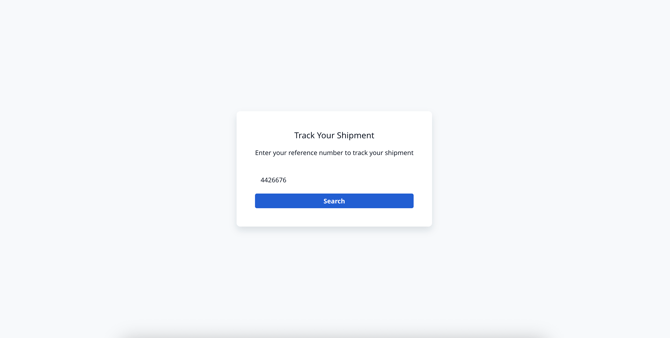
Above: The search interface your customers will see.
Prerequisites
-
A Board set up with the orders or loads you wish to share.
-
Permissions to share boards enabled for your user profile.
Step 1: Enable Public Sharing
Before enabling the tracking search, the board must be publicly accessible.
-
Navigate to the Board you want to make searchable.
-
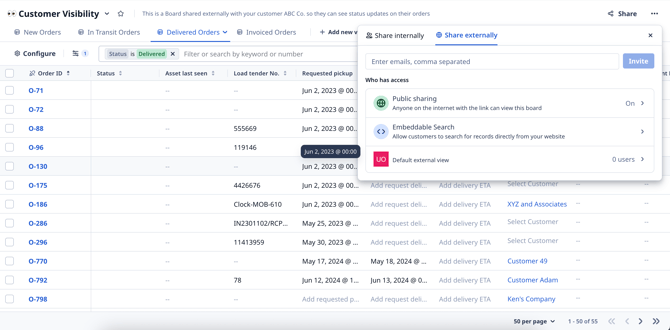
Click the Share button in the top-right corner.
-
Select the Share externally tab.
-
Ensure Public sharing is set to On.
Step 2: Configure Search Fields
-
In the same Share externally menu, click on Embeddable Search.
-
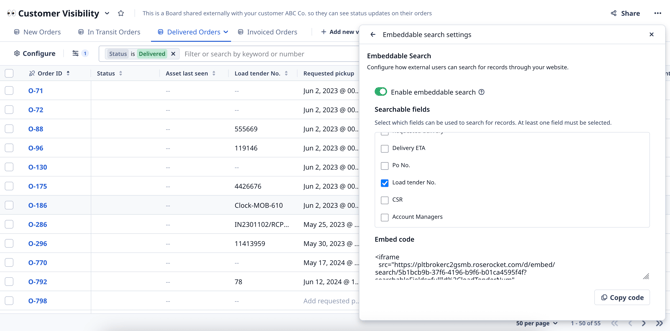
Toggle the switch to Enable embeddable search.
Select Searchable Fields
You must select which data columns your customers are allowed to search by.
-
Available Fields: You can select any field that currently exists as a column on your Board.
-
Search Logic: The search uses an "OR" operator. If you select multiple fields (e.g., PO Number and Load Tender No.), the system will check all of them for a match.
Best Practice: Choose unique identifiers like Order Number or Tracking ID. Avoid generic fields like "City" or "Status" to prevent customers from matching with the wrong order.
Step 3: Implement the Tracking Search
Once your settings are saved, a code snippet will generate at the bottom of the settings panel. There are two ways to use this:
Option A: Embed on your Website (Widget)
This method places the search bar directly inside your own website (e.g., on your homepage or a "Track My Order" page).
-
Click Copy code.
-
Paste the full iframe code into your website's HTML.
Option B: Standalone Search Page (Direct Link)
If you prefer not to embed the tool, you can simply link customers to a full-page search screen hosted by Rose Rocket.
-
Look at the generated code snippet.
-
Find the URL inside the quotes following
src=. (It will look likehttps://app.roserocket.com/d/embed/...). -
Copy just that URL and use it as a standard hyperlink on your website or in customer emails.
Customer Experience
When a customer enters a valid reference number:
-
The system searches your configured fields for a "Contains" match (e.g., searching "123" will find "ORD-123").
-
If a match is found, they are redirected to the Public Tracking Page for that specific order.
-
If no match is found, they will see a "No matching records found" message.
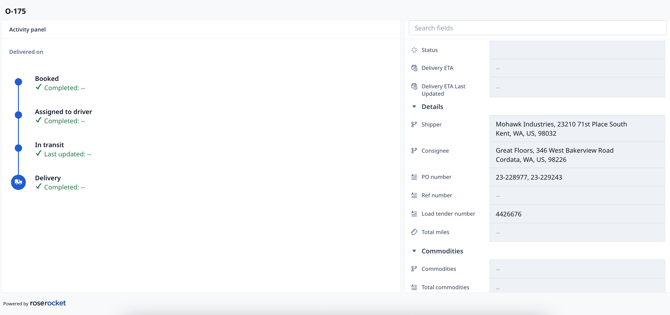
Above: The destination page the customer sees after a successful search.
Important Configuration Details
Search Behavior
-
First Match Only: If a search term matches multiple records (e.g., duplicate reference numbers), the system will redirect to the first record found. It does not display a list of results.
-
Case Insensitive: Searching "ord-123" will match "ORD-123".
Security & Limits
-
Read-Only: The destination page is a viewer-only link. Customers cannot edit data.
-
Whitelisting: Customers can only search against the specific fields you selected in Step 2.
-
Rate Limiting: To prevent abuse, the search tool is limited to 120 searches per minute. If this limit is exceeded, the user must wait 60 seconds before searching again.
Troubleshooting
-
"No Matching Records Found": Ensure the order is actually visible on the Board you are sharing. If the order is filtered out of the Board view, it cannot be searched.
-
Widget not loading: Ensure your website supports iframes and that the Public Link for the board has not expired or been revoked.