
Table of Contents
- What are Widgets
- What is a Widget Sequence
- Creating a custom widget
- Building a widget sequence
- External user access
- Common use cases
What are Widgets?
Widgets are custom data collection steps that appear inside records — like an order or a customer — and guide your team through information they need to enter as they work.
You can create a widget for any field or set of fields in your system and add it to a sequence that your team works through when processing a record.
With Widgets, you can:
- Build structured data collection steps specific to your workflow
- Choose when a widget closes — after any field is filled, or only when all fields are complete
- Arrange widgets into a sequence that matches how your team actually works
- Assign different widget sequences to different user roles
- Control which widgets are visible to external partners
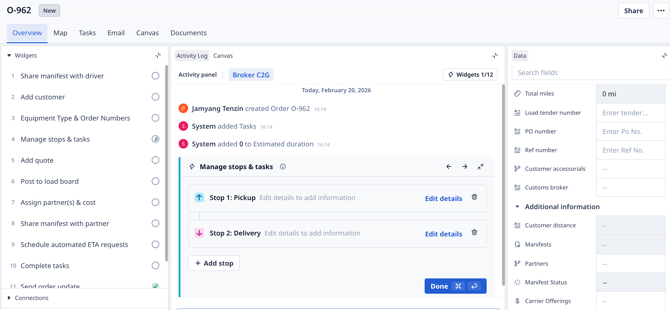
What is a Widget Sequence?
A widget sequence is an ordered list of widgets attached to a specific object (such as Orders or Customers). When your team opens a record of that type, they see the widget sequence for their role and work through each step.
Sequences can be:
- Global — one sequence applies to all users for that object type
- Per role — different roles see different sequences
Reminder: A widget is a type of workflow logic stored in Rose Rocket. Orders, Quotes, Manifests, Tasks, Customers, Invoices, Customers and Partners all contain default workflow logic and form steps. Each Object has a series of widgets, which typically show up as a card in the Activity Log in the detailed view.
Creating a custom widget
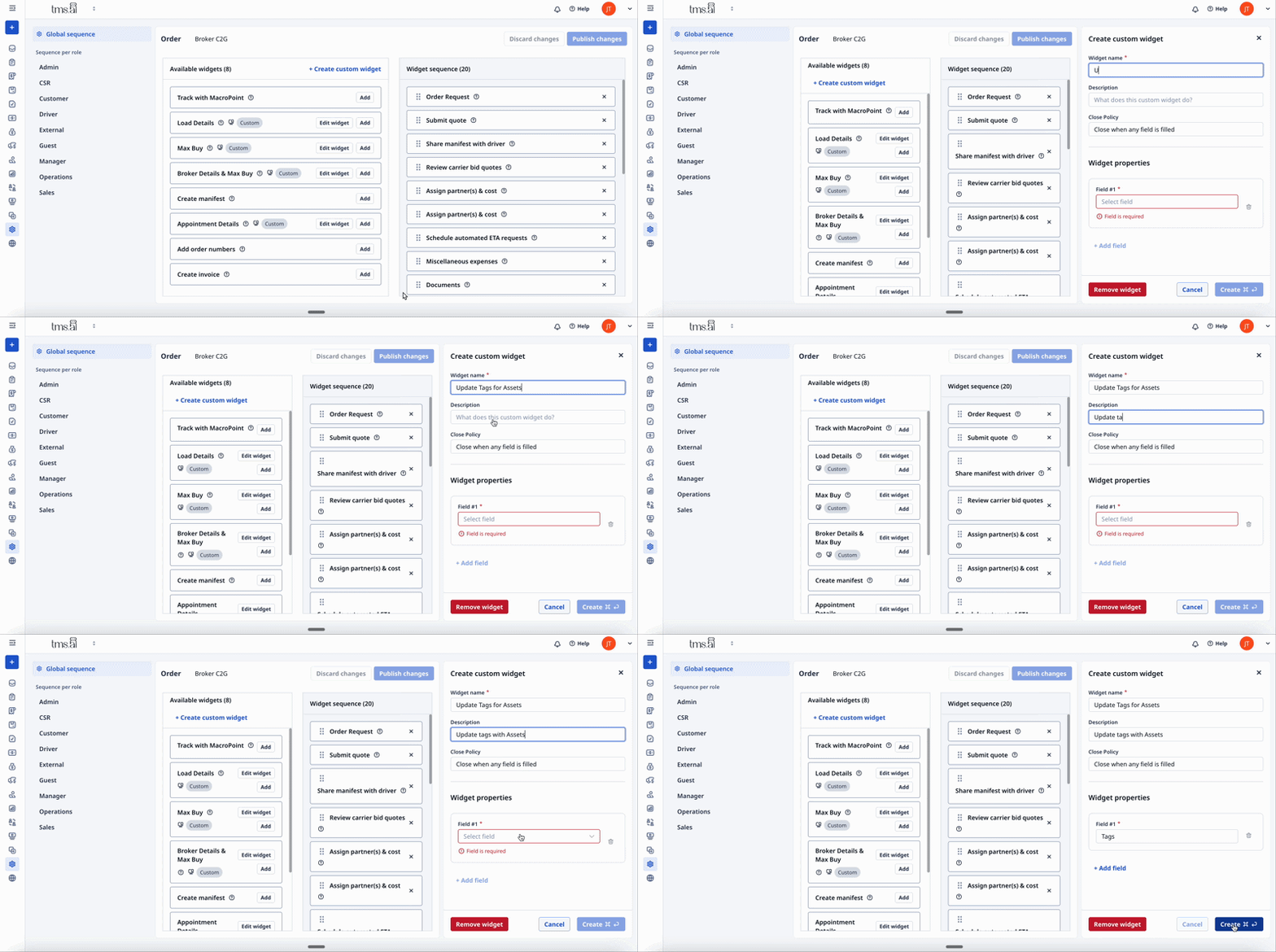
To create a custom widget:
- Go to Settings → Widgets
- Select the object type you want to add a widget to (e.g., Orders)
- Click + Create custom widget
- Fill in the widget details:
- Widget name (required) — shown to your team as the step title
- Description (optional) — explains what the widget is for
- Close policy — controls when the widget closes automatically:
- Close when any field is filled — widget closes as soon as one field has a value
- Close when all fields are filled — widget stays open until every field is completed
- Click + Add field to add the fields your team needs to fill in
- Click Save
Tip: Keep widget names action-oriented — "Enter Carrier Details" or "Confirm Pickup Time" is clearer to your team than a generic label.
Building a Widget Sequence
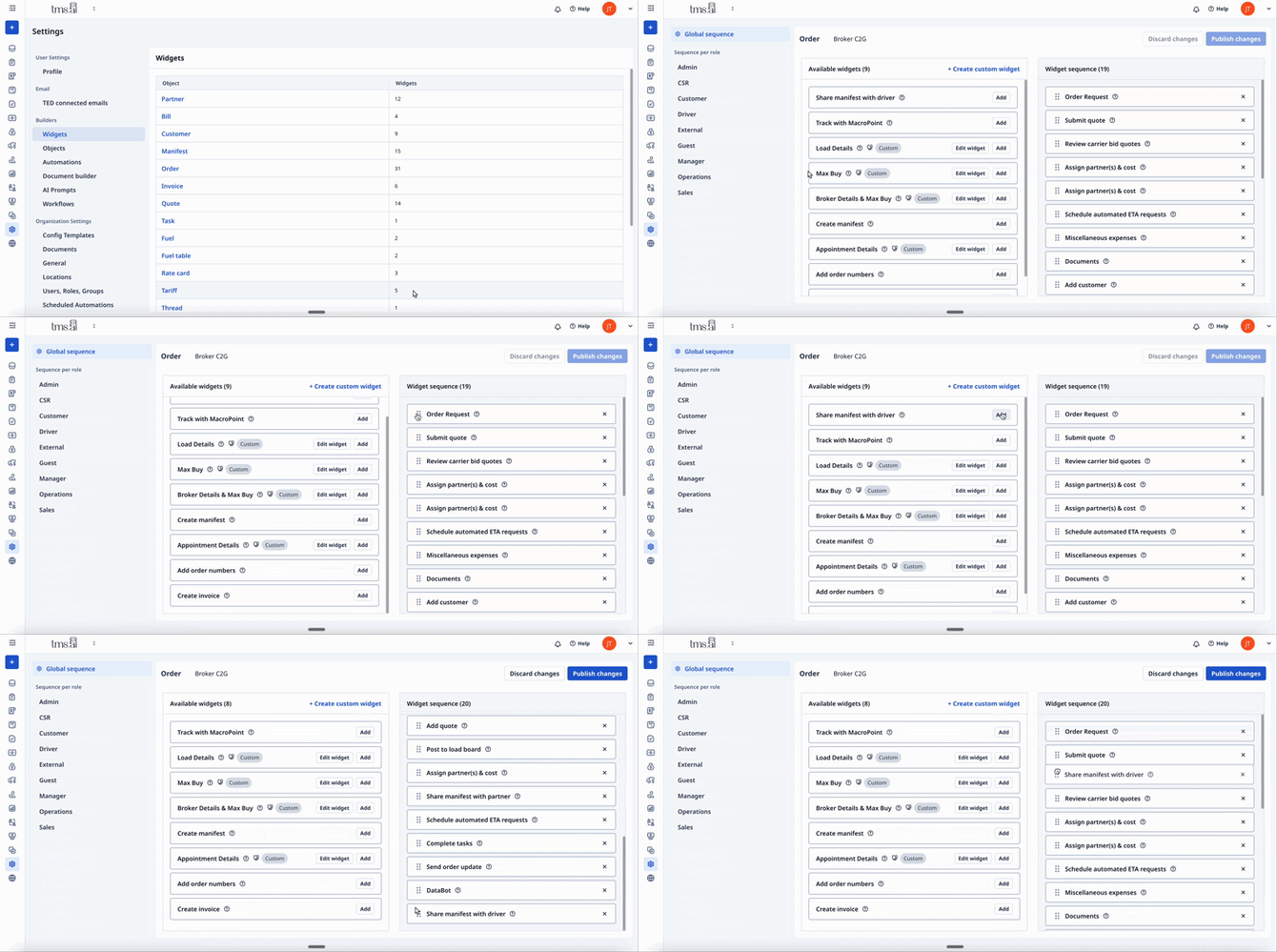
Once you've created your custom widgets, add them to a sequence and arrange them in the order your team should work through them.
To build a sequence:
- Go to Settings → Widgets
- Select the object type (e.g., Orders)
- Drag widgets from the available panel on the left into the selected panel on the right
- Drag widgets within the selected panel to reorder them
Global vs. per-role sequences:
- By default, the sequence is global — all users see the same widgets
- To set different sequences per role, switch to Sequence per role and configure each role separately
Controlling access by role
Different roles — including external partners like carriers or customers — can see different widgets.
To control widget visibility by role:
- Go to Settings → Widgets
- Select the object type
- Switch to Sequence per role
- Select the role you want to configure
- Toggle individual widgets on or off for that role
Note: Widgets toggled off for a role are hidden entirely — those users won't see them or be asked to complete them.
External user access
If you work with external partners — carriers, customers, or brokers — you can control which widgets they see.
To configure external access:
- Open the sequence in Widget Builder
- Select the External tab
- Review the list of widgets in the sequence
- Toggle visibility on or off for each widget
Note: External users only see the widgets you've marked visible. Hidden widgets are completed by your internal team before or after the external steps.
Common use cases
Order Entry Checklist Build a Data Entry widget for pickup details, a Document Upload widget for the BOL, and a Confirmation widget before dispatching. Your team works through each step in order — nothing gets skipped.
Carrier Onboarding Create an externally-visible sequence that carriers complete when they're added as a partner. Collect insurance certificates via Document Upload, confirm their contact details with Data Entry, and add an Instructions widget with your onboarding requirements.
Invoice Verification Add an Instructions widget with your billing checklist and a Confirmation widget your finance team clicks before an invoice is sent — a lightweight internal control without a separate tool.
Role-Specific Checklists Build different widget sequences for different teams. Your dispatch team sees one set of fields on an order; your finance team sees a different set. Same record, tailored views.
Have questions about Widget Builder? Contact your account manager or reach out to support@roserocket.com.