
To locate your Manifests:
- From the menu on the left side of the screen, hover over the Planning module

- A pop-up menu will appear to the right of the module menu
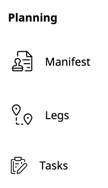
- From this menu, select "Manifest"

To add a Custom Task to a Manifest:
-
- Locate the Manifest that requires additional Tasks

- Click anywhere in the Manifest to open it up

- The Manifest will open in a pop-up screen
- At the top of this screen, click "VIEW FULL" to view all Manifest details

- Once you are on the Manifest in full view, scroll down to the Stops section
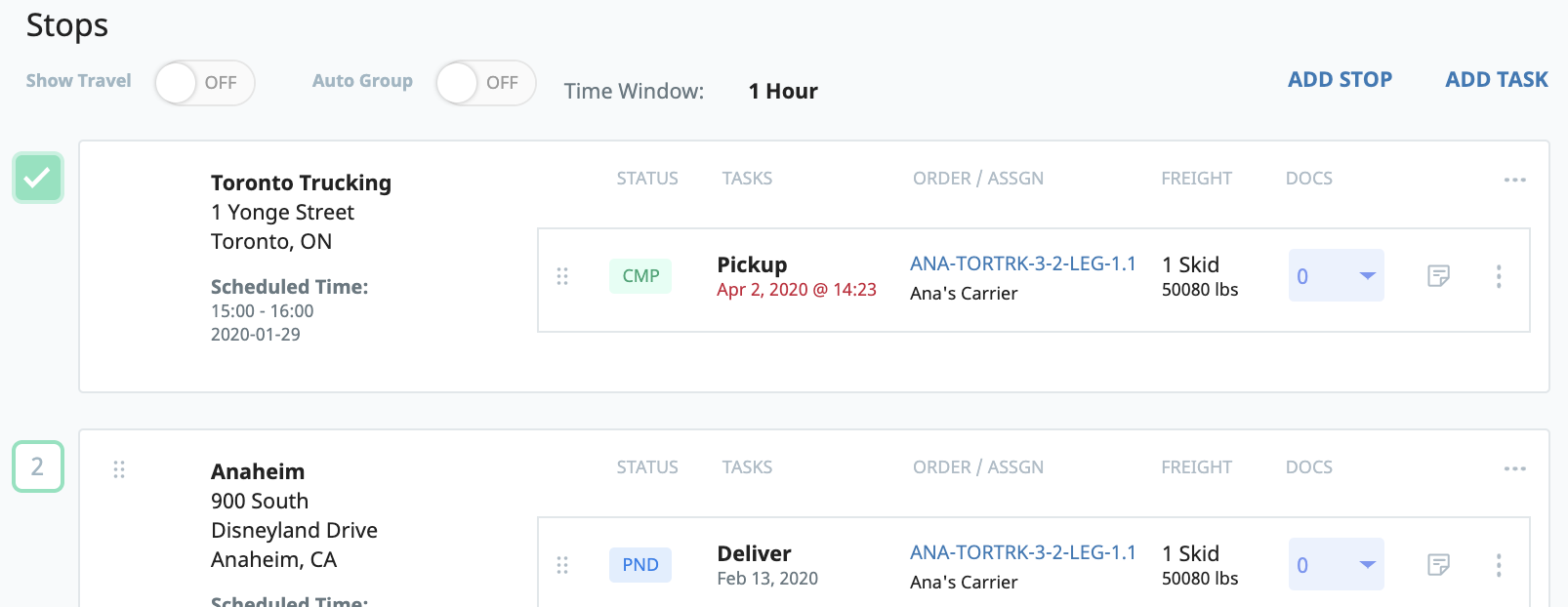
- To the right of the Stops heading, click "ADD TASK"

Why can't I see this section? - A pop-up box will appear where you can enter the Task information
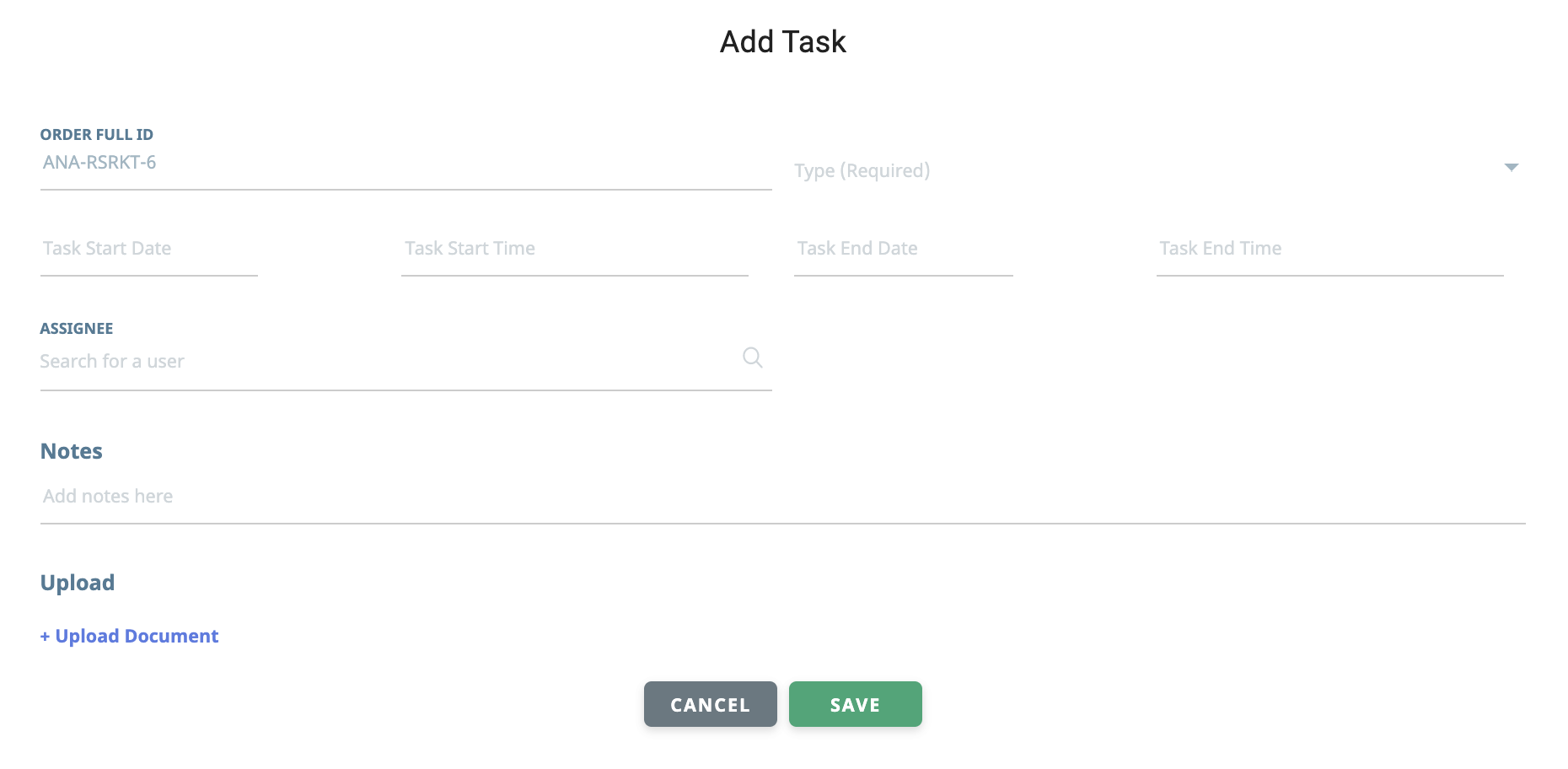
- Enter the Task Type

Click on the "Type (Required)" field to expose a drop-down menu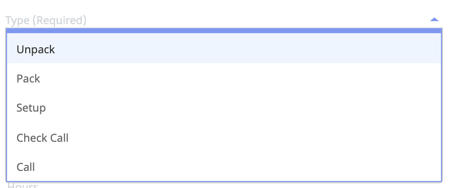
From the drop-down menu, select the type of Task you are creating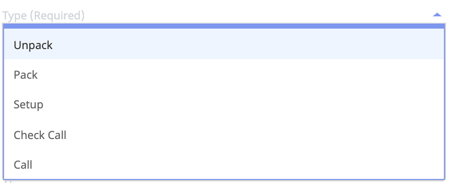
Once selected, the type will display within the previously blank Task Type field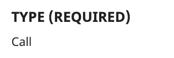
- Select the Task Start Date by clicking the Task Start Date field and selecting a date

- Select the Task Start Time by clicking the Task Start Time field and selecting a time

- Select the Task End Date by clicking the Task End Date field and selecting a date

- Select the Task End Time by clicking the Task End Time field and selecting a time

- Assign this Task to a user

Click on the "Search for a user" text field and enter a name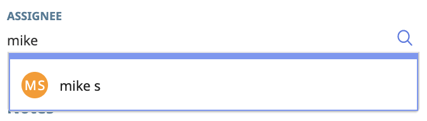
From the search results that appear, select the user you want to assign the Task to

Once saved, this task will be assigned to the user you have selected - Fill out any additional fields if they are displayed here and/or are necessary



- If necessary, add any additional Notes to the Task

- If necessary, upload a document to associate with this Task

Click the "+ Upload Document" link
Select a file from your computer and upload it to the Task
The document will now appear within the Task information - When all information has been correctly entered, click "SAVE"

- The Task will now appear on this Manifest
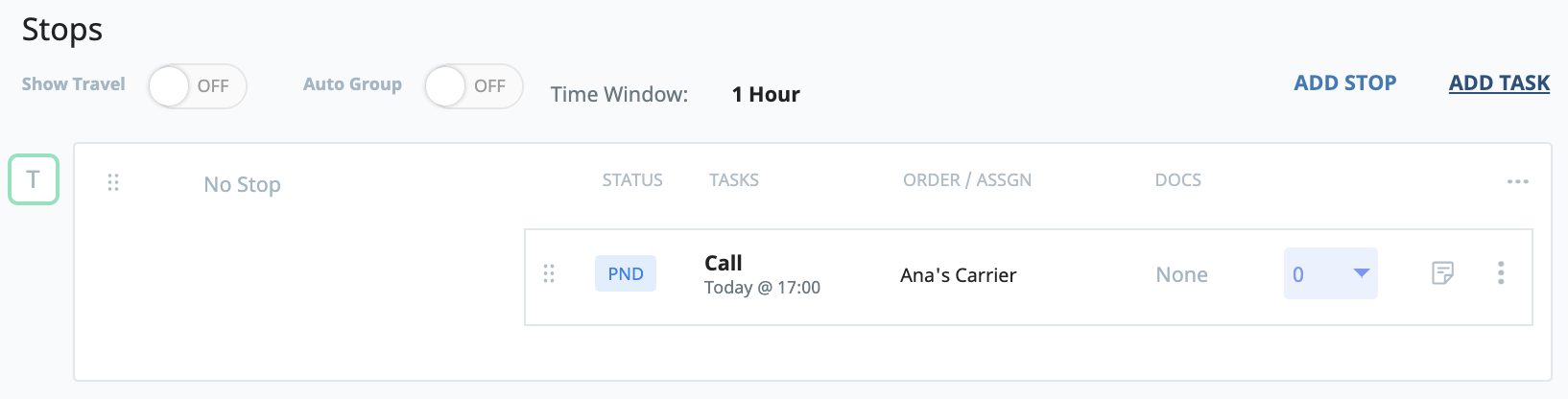
- Locate the Manifest that requires additional Tasks